.
.
.

.

.
.
 .
.
 .
.
 .
.
.
.
 .
.
 .
.
 |
..... |
Internet
Marketing for High School Teachers
at
Old
Dominion University

| THE BASICS
These pages are not intended to be all inclusive; however, I hope you'll find them to be a helpful reference for some of the most common maneuvers when building a Web page. If there is anything specific you would like to see added, please let me know! General - When building your pages, remember a few details. You build your pages in Composer mode, but you see what they will look like by clicking on the preview button. You must always save your work before you can preview it, and you must always preview your work before you can see what your changes will actually look like to viewers. It can get confusing! And if you don't see your changes in the preview page, hit the reload button before you start kicking and screaming. Internal Links - Internal links are those that bring you to another point on the same page. For example, when you click on the internal link at the bottom of this page that says Back to the top, it moves you to another location on this page. To create an internal link, you must first have a source and a target. The target is where you want your visitor to be after clicking the link; the source is where they will click to get there. Think of an arrow and a bulls eye. The source is where you shoot the arrow from. The target is the bulls eye. To create this link:
External Links - External links are those that bring you to another page--even if it's another one of your own pages! To create an external link, simply:
Click on OK. To test the link, preview the page and click on the link. Watch for TYPOS! 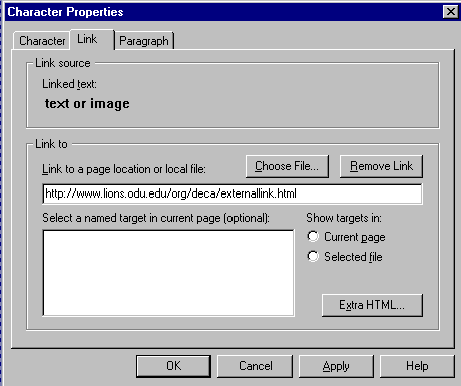 |
 appear. It will NOT appear in the preview window.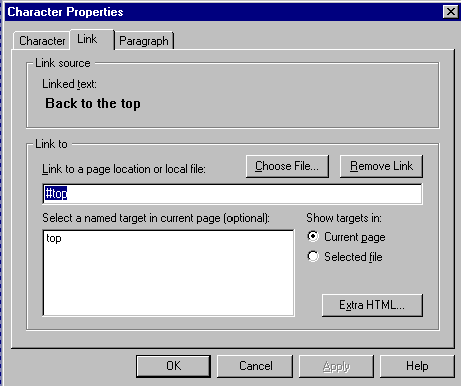
Netscape
Composer | Creating
a hyperlink | Insert
an image
Titles,
backgrounds, and link colors | Using
Tables | Naming
your files
Uploading
your pages to the World Wide Web | Test
your knowledge
Course
Home | Schedule
| Project I
| Resources
Phase
I | Phase
II | Phase
III
.
.
Contact Mickey Kosloski at mkoslosk@odu.edu