| UPLOADING YOUR PAGES
Putting your work on the Internet is easy.
Once you've signed into Geocities,
go to file manager. Scroll down to the bottom of the page until your
see the section that looks like this:
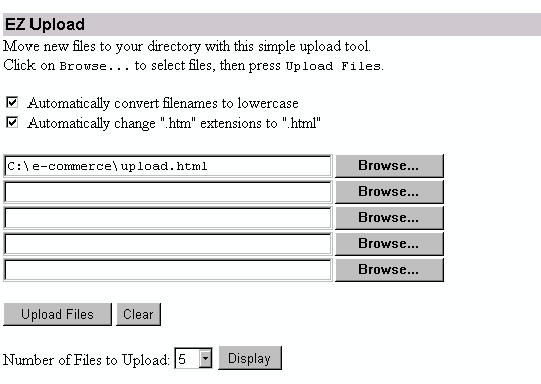
Once you are here, the rest is simple.
Place a check by both of the boxes above ("automatically convert.... and
automatically change....), then click on the browse button. You will
get a dialogue box that asks you to select your file. Select it,
and you will see your file name appear to the left of the button, just
as you see in the first line above. Click on the button that says
"UPLOAD FILES", and voila, you're live on the Internet!
In addition to your pages, you MUST upload
each and every image that is on your page! When you click on the
Browse button to select your file, you probably won't see your image where
you saved it. That is because, by default, Geocities will only show
you files that have an "html" extension, or web pages. To get to
your images, click on the browse button, go the bottom of that dialogue
box
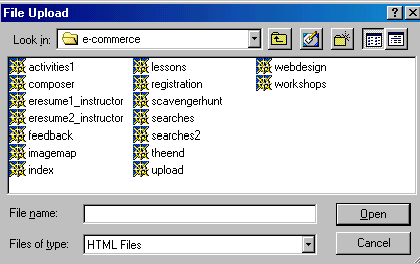
And click on the drop down menu next to
where it says, "Files of type". Change that to "All Files,"
and your image files will appear above. Select the image that you
want, and upload it the same as above.
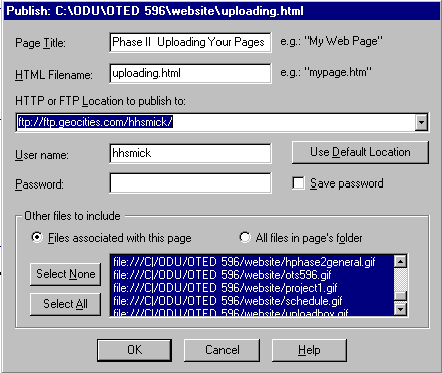
An alternate, and easier way to upload
your pages is with the Composer publish button. Residing next
to the save button, click on the publish button.. To use this,
you will need to know your entire ftp (file transfer protocol) address,
but it's easy! For Geocities, your ftp address will be ftp://ftp.geocities.com/yourusername
In taking this route, Geocities will automatically upload not only
your Web page, but all images other files associated with your page.
This is a real time saver, but you still need to know how to get into your
file manager.
|


 .
.
 .
.
 .
.
 .
.
 .
.