


.
.
.
.
.
.
.
.
..........

.
.
...
OTS 596 at Old Dominion University
.....Internet Marketing for High School Teachers at Old Dominion University

Internet Marketing for High School Teachers
at
Old Dominion University


INSERTING IMAGES INTO YOUR WEB PAGE

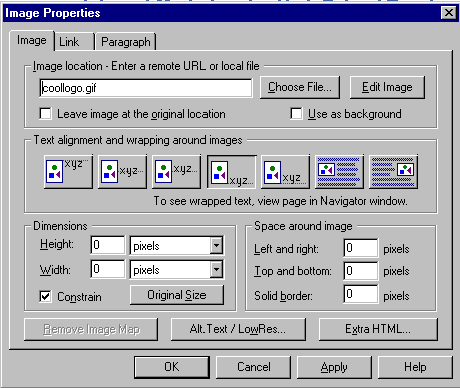
Inserting an image onto your page - To insert an image onto your page:

  • Place your blinking cursor where you want to image to appear.
  • Click on the image button on your toolbar.
  • Near the top, click on the button that says Choose File.
  • Select your image.
  • Click on OK (if you want this image to be a background, check the box that says Use as Background).


From this image properties box you can resize the image, change the way text wraps around it, add a solid border around it, etc.  Don't be afraid to experiment!

One thing you should probably avoid is resizing images by dragging and moving the frame around your image.  This may distort your image.  Resize it by right clicking on the image and using the dimensions properties in the corresponding dialogue box.  At any time that you need to return to this box, simply right-click on the image, then go to "image properties."  If you have distorted your image, return to this box and click on the original size button.

A few quick notes on images...

  • All images names must be void of spaces in its name.  For example, if you have an image named "Ted the Dog.gif" on your hard drive, you must first rename this image to "ted.gif" or ted_the_dog.gif". All spaces must go!
  • Notice in the example above I reduced all letters in the name to lower case.  You should do this same.  Some servers are cases sensitive (including Geocities, which you may be using for this project).  Just get in the habit of using all lower case and then you don't have to think about it.
 
Netscape Composer | Creating a hyperlink | Insert an image
Titles, backgrounds, and link colors | Using Tables | Naming your files
Uploading your pages to the World Wide Web | Test your knowledge

.
  Course Home | Schedule | Syllabus

Lesson 1 | Lesson 2 | Lesson 3 | Lesson 4 | Lesson 5
Lesson 6 | Lesson 7 | Lesson 8 | Lesson 9 | Lesson 10

Workshop | Project 1 | Resources

Contact Mickey Kosloski at mkoslosk@odu.edu