.
.
.

.

.

.
.
 .
. .
. .
. .
. .
. .
. .
. .
. .
. .
.
.
.
 .
. .
. .
.
 |
..... |
Internet
Marketing for High School Teachers
at
Old
Dominion University
|
Tables - You will use tables frequently.
While you will not always see them, you will use them to help you organize
and align data. This is done with a table:
But it looks like this in Composer view: 
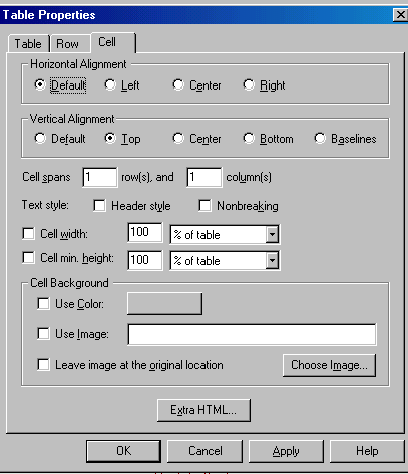
I know, I know, you're mesmerized, right? You will use it often--trust me. Tabs and spaces don't work well, but you can align your pages with tables. One common usage of tables is to place colors and links in a left hand column of your page, with your content on the right. Tables have been utilized on this page, with one small column on the left, housing the buttons, while the second column neatly aligns the text you are reading now. Once your table is created, there are LOTS of ways to manipulate it. You can resize it, place images in it, color the background, etc. To do this, right click on the table, go to table properties, and this box will appear:
Pay particular attention to vertical alignment, as it can be a nightmare! By default, the Composer assigns a Vertical alignment of center, but we are all accustomed to things being aligned at the top. To change this, move your blinking cursor to the cell or column in question***, right click on the cursor, then change the vertical alignment to top. ***(Because of the central
alignment, you might click in the cell and your cursor goes somewhere else!
You have to "hit" right on the center of the cell or your cursor will go
away. If you have this problem, put your cursor in the first cell,
then hit the tab button to see where the cursor goes. Right click
directly over it. If you don't get it perfect, your cursor may jump
away again! Keep trying until you get it, then change the alignment.
The problem will then cease.)
|
Titles, backgrounds, and link colors | Using Tables | Naming your files
Uploading your pages to the World Wide Web | Test your knowledge
.
Course
Home | Schedule
| Syllabus
Lesson
1 | Lesson
2 | Lesson
3 | Lesson
4 | Lesson
5
Lesson
6 | Lesson
7 | Lesson
8 | Lesson
9 | Lesson
10
Workshop | Project 1 | Resources
Contact Mickey Kosloski at mkoslosk@odu.edu