.
.
.

.

.

.
.
 .
. .
. .
. .
. .
. .
. .
. .
. .
. .
.
.
.
 .
. .
. .
.
 |
..... |
Internet
Marketing for High School Teachers
at
Old
Dominion University

|
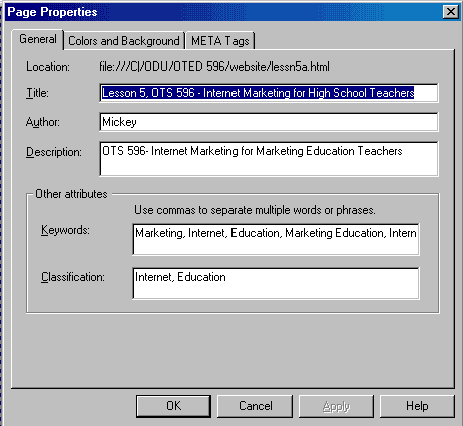
There are plenty of invisible "tags" that belong in your Web pages. Tags are probably the most technical thing I will discuss on these pages, but they also serve a big purpose! If you don't know about them, you probably won't include them in your pages. Here are some of the things you should place in your page, how, and why. ALT TAGS - We mentioned earlier in the course what ALT tags are. Hold your pointer over any of the images above and you will see a short dialogue appear. Why are they important? ALT tags serve multiple purposes. For someone that is viewing the Web with images turned "off," ALT tags provide them some insight as to what the image is supposed to be. This also plays a role in slow loading pages. ALT tags also provide you with an opportunity to send a "message" to your visitors, such as the "Eat at Joe's" message in lesson two. However, the most important purpose of ALT tags is to aid and assist in search tool rankings. Allow me to digress for a minute to explain how certain search tools index pages. Directories, such as Yahoo!, actually have a human being visit every home page of every submission. As a result, they only have slightly more than 2,000,000 pages indexed, as opposed to the Google's 1 billion+, but the pages should be relevant and properly categorized.*** Search engines, such as my personal favorite Alta Vista, send out spiders and robots to "crawl" over your site, indexing every single word of every single page you have posted. They assign certain "weights" to different words and actions. For example, the title is ordinarily heavily weighted, so you should put a lot of thought behind the keywords that go into your title. And the words at the beginning of the title have more weight than the ones at the end, etc. Your object is to accumulate as many "points" as you can, taking weighting into consideration, and keying on your one or two most relevant keywords. For an excellent description on how to properly prepare your pages for search tools, see Kimnet1 and Kimnet.2. An easy way, then, to get ranked is to take your main keywords and repeat them over and over again, right? Not quite. While you do receive more "points" for repeated keywords, most search tools can now distinguish whether or not you are "stuffing" your META tags and ALT tags, and will penalize you accordingly. So you want to repeat as often as you can without breaking the rules. ALT tags provide you with an opportunity to do this. Carefully selected, you can repeat your keywords in ALT tags, give your page more "points," and improve your search tool rankings. Explain this to your students (or let them research it themselves) and let them start ALT tagging their site. In theory, every single image should have an ALT tag. How? In Netscape Composer there is a great shortcut! When you insert an image into your page, an "IMAGE PROPERTIES" dialogue box appears. Near the lower right-hand corner there is a button that says, "EXTRA HTML." Click on it. In the dialogue box that opens, type in ALT="your words here" exactly as I have just typed it, quotations and all (without the underline). You're done. To test your ALT tag, close the box and move your pointer over the image. You don't even have to save and go the preview first. If it doesn't appear, check for typos. (The one thing that doesn't have to be exactly as I typed is the word ALT being all upper case, but do it anyway. This is usually done to make it easier to find the tags if you have to root back through the lower case page code.) If you are not using Composer, you may have another shortcut that you can use with your software. However, you can always go straight to the code, but that gets a bit more complicated. If you are using Netscape, go to the top of this page and click on VIEW, then PAGE SOURCE. (For Internet Explorer, click VIEW, then SOURCE) This is what I mean by "the code." Kind of looks like a secret code, eh? If you need to write directly to the code, go to a text editor, such as Windows Notepad, open your page, and look around for your image. It will look like this: <img SRC="keepingbusyheading.gif" height=34 width=205> and insert your ALT tag as such <img SRC="keepingbusyheading.gif" ALT="Providing Meaningful Work" height=34 width=205> right after the image name. Beware of typos! You can't spell check these easily, and your visitors will see your text. At this point you really don't have to understand it, you just have to be able to find the image. IF YOU ARE CONFUSED ABOUT TAGS AT THIS POINT, DON'T BE FRUSTRATED! Simply understand why you want them in your pages. Titles and META Tags - You will probably need to actually teach titles to the entire class, but since they are included in the META tags box, I'll include it here. Titles have a heavy weight in search tool placement. Titles are also what appear in the title bar of your page, as well as the bookmark description. They are too important to leave up to only your more advanced students. I'll get to the "how's" in a moment, but include titles! For a more in-depth look at creating META tags, go to the tags page and read through the specifics. There are a lot of independent resources on this topic, as well. What are META tags? META tags are "invisible" pieces of code that are in your page, but your visitor will never see them. Most search engines rely on these tags when they are indexing your pages, so you not only need to have them, but you need to put some thought behind them! Well conceived META tags can provide you with good search engine rankings, while poorly done (or not at all) tags might mean that you never get found. When you are building a business site and depend on people finding you on the Web, META tags are a necessity! The two main META tags you will use are the "keyword" META tag and the "description" META tags. There are several others, but these two are the main ones that you will see. If you are using Netscape, take a moment and look at the code. Do this by clicking on VIEW on your menu bar, then PAGE SOURCE. (For Internet Explorer, click VIEW, then SOURCE) This is the code. Near the top you see several lines of text that start with <meta name="KeyWords" content="Marketing, Internet, Ed........ These are this page's META tags. When the spider or robot visits your page, it assigns a significant "weight" to these, just as with the ALT tags, and gives you "points" for each keyword, same as above. The concept is the same as above, only a different venue. META tags play a bigger role in getting you found through the search tools than ALT tags, but both are important. Now you've got your title, META tags, ALT tags, and text to repeat the same keywords without being penalized. The sophisticated spiders will actually give you additional "points" if your keywords match in these different areas. For example, if you have built a site about your DECA chapter and want to be found when someone searches for "Hickory DECA," then you should place the phrase "Hickory DECA" as the first two words in your title, the first phrase in your keywords META tag, the first two words in your description META tag, you should make an effort to name the first ALT tag in your code "Hickory DECA," and you should include the phrase as the first few words in the body/text of your document. Not only have you "legally" repeated your main keywords in each page, but most search tools will reward your for consistency, giving a heavier weight to the phrase "Hickory DECA" since you obviously mean business! In all of the above cases, use the words that you feel will be most commonly searched first in your list. Some indexing tools won't even read past about 15 words. How? Creating META tags is a breeze! Knowing how to make them good is another story. Don't worry at this point about being an expert on them. Just understand why you want them on your pages. Read more about META tags on the tags page. To create META tags in Netscape Composer, click on FORMAT, PAGE COLORS AND PROPERTIES, then click on the GENERAL tab. In that dialogue box you will see where to type your title, your description META tag, and your keywords META tag. Now click on OK. How much easier can it get??? Read the tags page or other source on creating good META tags, then create them. You can read how to insert them directly into the code, but virtually every Web authoring program provides you with a tool to do this with. And if yours doesn't, there are plenty of free META tag writing tools out there. One additional note about META tags. When your students are creating their tags, do NOT let them copy and paste from one page to another! You should give thought on how to alter your tags from one page to the next. When a robot examines your site, they will read every words of every connected page. You goal should be to get the search tool to index any one of your pages. If your tags are slightly different on each page, you significantly increase the odds of getting a page found. If they are the same from page to page, they will be indexed similarly. Once discovered, you have to hope that your visitor will stay because of your content. Kind of the same philosophy with any retailer. Get 'em in the store with ads and promotion, keep them there because your store has something to offer. While the main concept will remain constant between pages, your META tags and titles should vary slightly from page to page, optimizing the opportunity that any one of your pages will be "discovered." As a result, this will not be a 10 minute job for your students. They could literally spend several days on nothing but tags! ***As of 2/01, www.searchenginewatch.com |

Keeping
Busy | ALT
and META Tags | The
Tags Page
3D
Text and Images | Crunching
Images | Javascripts
| Hotlinks
| Assignment
.
Course
Home | Schedule
| Syllabus
Lesson
1 | Lesson
2 | Lesson
3 | Lesson
4 | Lesson
5
Lesson
6 | Lesson
7 | Lesson
8 | Lesson
9 | Lesson
10
Workshop | Project 1 | Resources
Contact Mickey Kosloski at mkoslosk@odu.edu